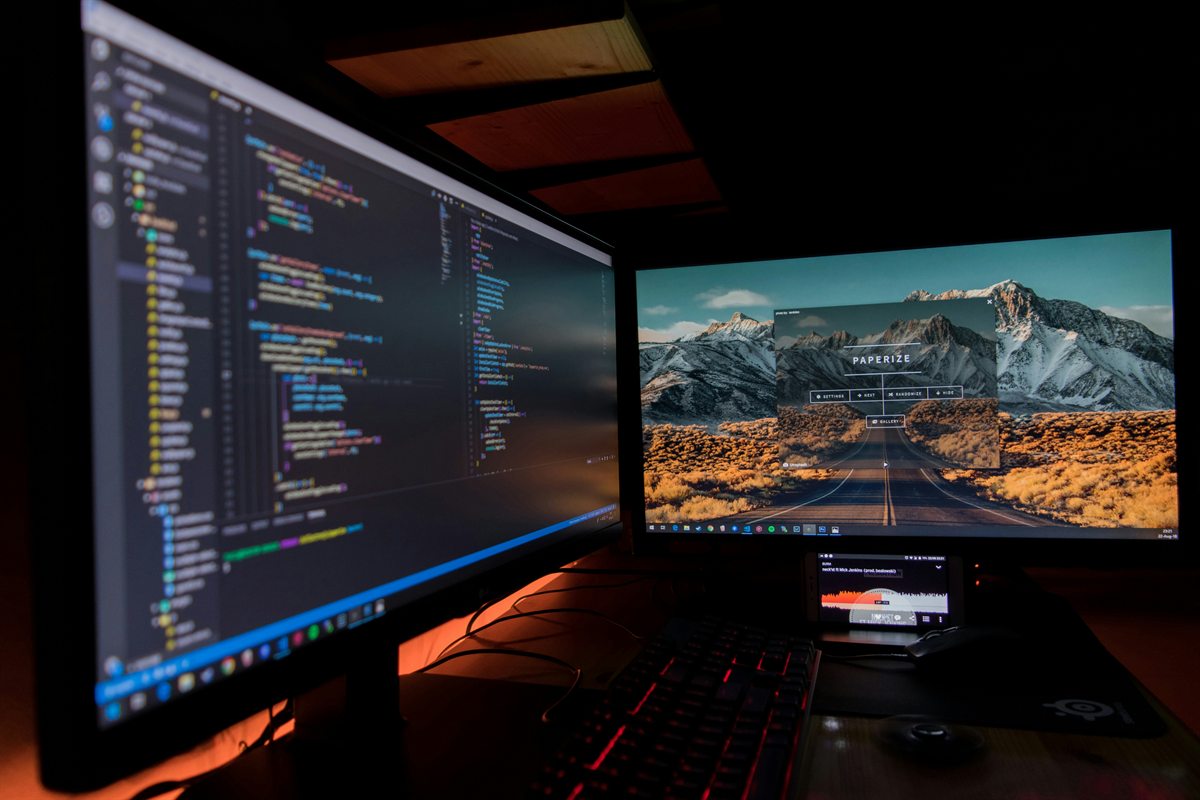
PC tune-up service from Profix Squad identifies the software, startup, storage, browser, and system conditions that can make a desktop or laptop feel slow. We can optimize startup programs, remove unnecessary software, clean appropriate temporary files, troubleshoot background activity, review Windows and software updates, and improve browser performance. These steps may help with long boot times, lagging applications, freezing, sluggish browsing, and delays while multitasking. Tell us what has changed, which tasks are slow, and whether the computer remains usable to request PC tune-up assistance and check which service option is available.
At-home and service-location options subject to local availability
NOTICE THE PATTERN
Signs Your Computer May Need a Tune-Up
A slow computer can show the same symptoms for very different reasons. These signs help describe the problem, but they do not prove that routine cleanup will fix it. Software load, storage condition, memory limits, heat, malware, and Windows problems can overlap.
Slow startup
Windows takes noticeably longer to reach a usable desktop, or the computer remains busy after you sign in.
Programs open slowly
Everyday applications take longer to launch or respond even when the computer is not handling a demanding task.
Frequent freezing
The pointer, keyboard, or an open program stops responding for short periods or forces you to wait repeatedly.
Sluggish web browsing
Pages, tabs, or browser controls feel slow despite an otherwise stable internet connection.
Delays while multitasking
Switching between applications causes lag, long pauses, or unusually high CPU, memory, or disk activity.
Unresponsive applications
Programs regularly display a not-responding message, close unexpectedly, or take too long to complete routine actions.
Performance declines over time
A computer that was previously responsive has become slower as software, startup activity, or storage use has changed.
High background resource usage
The system stays busy when little appears to be open, which can point to background applications or another underlying issue.
TUNE-UP SERVICES
What Our PC Tune-Up Service Includes
A computer tune up service should address relevant sources of software load without treating every file, process, or update as a problem. Profix Squad provides the following computer performance optimization services when they fit the symptoms.
01
Startup Program Optimization
Startup optimization reviews applications that load with Windows and reduces unnecessary startup activity. Essential security, driver, and system services should remain enabled; the goal is a more appropriate startup load, not disabling everything.
02
Unnecessary Software and Storage Cleanup
Unwanted or unused applications can consume storage and add background activity. Cleanup can also address appropriate temporary files and storage clutter while avoiding indiscriminate deletion of personal files or application data. Freeing space may help a constrained system, but temporary-file removal alone does not guarantee a faster computer.
03
Background Process and Performance Troubleshooting
Background-process troubleshooting looks for unnecessary applications or software behavior using excessive CPU, memory, or disk resources. Some background processes are required by Windows, security software, hardware, or applications and should not be removed simply because they are active.
04
Windows and Software Update Checks
Relevant Windows and software updates can be reviewed alongside compatibility, available storage, device condition, and the reported symptoms. An update is not automatically a performance fix, and installation decisions should account for the computer's current state and risk.
05
Browser Performance Optimization
Browser optimization can include reviewing unnecessary extensions, changed settings, excessive notifications, and other software-related causes of sluggish browsing. Internet speed, account sync, and website-specific problems may require separate troubleshooting.
MATCH THE SYMPTOM TO THE CAUSE
Why Is Your Computer Running Slowly?
Performance bottlenecks are not interchangeable. The task that is slow, the resource under pressure, and the condition of the computer help determine whether a PC performance optimization step or another repair is appropriate.
Slow Startup
Too many startup applications, heavy background activity, slow storage, pending system work, or Windows problems can all extend boot time. The delay needs context before startup items are changed.
Slow Multitasking
Resource-intensive applications and limited physical RAM can create memory pressure when several tasks are open. Software optimization may reduce unnecessary demand, but it cannot create additional physical memory.
Slow File and Application Loading
Low available space, heavy disk usage, storage configuration, and an aging or failing drive can delay files and programs. SSD and mechanical HDD behavior differs, and drive-health concerns require careful assessment rather than indiscriminate optimization.
Slowdowns and Overheating
A computer may reduce performance when temperatures rise. Dust, blocked airflow, a cooling fault, or another hardware problem can contribute, and those conditions may need hands-on hardware assessment rather than a software tune-up.
A proper assessment helps avoid applying a software cleanup to a hardware or operating-system fault.
Computer tune ups should respond to the reported problem rather than follow an automatic checklist. The order and depth of the work depend on what the computer can do and what appears to be limiting it.
1
Understand the performance problem
Describe which tasks are slow, when the change began, whether the problem is constant, and what the computer is normally used for. A slow boot, delayed browser, and system-wide freezing point to different starting questions.
2
Identify likely bottlenecks
Relevant software behavior, startup activity, background resource use, storage pressure, browser configuration, and system settings can be reviewed according to the symptoms. The assessment may also reveal signs that software optimization is not the right repair path.
3
Apply appropriate optimizations
Work can include startup optimization, unnecessary-program removal, appropriate temporary-file and storage cleanup, background-process troubleshooting, Windows and software update checks, and browser performance optimization. Only the steps relevant to the computer should be applied.
4
Review results and next steps
After the applicable changes, the original symptoms can be reviewed to see what remains. The next step may involve Windows repair, malware removal, hardware assessment, an upgrade discussion, or broader computer diagnostics.
CHOOSE A PRACTICAL SERVICE METHOD
Remote PC Tune-Up vs. Hands-On Service
The right service method depends on whether the computer remains usable, whether the likely work is software-related, and which Profix Squad options are currently available for the customer and area.
When remote troubleshooting may fit
Nationwide remote PC tune-up and performance optimization assistance is available throughout the United States for suitable computers, subject to service availability. The computer generally needs to start, respond reliably, and maintain an adequate internet connection throughout the remote session.
Possible fit: a stable, usable computer with a software-related slowdown
When hands-on service may fit
Overheating, storage warnings, unusual drive noises, failed startup, unstable remote access, or suspected hardware limitations may require physical assessment. Profix Squad offers at-home technician visits and service-location repairs, subject to local service availability. Confirm the hands-on option available in your area.
Possible fit: hardware concerns, unstable systems, or inaccessible computers
Describe what still works and which tasks are slow.
Software optimization cannot add physical RAM, repair a failing storage drive, correct a cooling fault, or remove every limitation of aging hardware. It also is not a substitute for malware cleanup or repair of substantial Windows corruption.
Responsible cleanup distinguishes temporary or unnecessary software from personal files and application data. Removing unwanted software should not mean deleting documents, photos, or other files the customer needs.
A current backup can reduce risk when storage health is uncertain or when more advanced Windows or hardware work may follow. No repair process can promise that data loss is impossible, particularly when a drive is already failing or the system is unstable.
ESTIMATE THE WORK REQUIRED
PC Tune-Up Cost and Service Time
Cost and service time can vary with the computer's condition, the type of slowdown, the amount of troubleshooting needed, storage health, software or Windows problems, and whether additional repair is appropriate. The available service method and local availability can also affect the next step.
Share the computer type, the tasks that feel slow, when the problem began, and whether the system freezes, overheats, or shows warnings. Those details help define the likely work without promising a fixed price or completion time before assessment.
Contacting Profix Squad gives you a way to connect the slowdown you notice with a suitable service path. The focus is on whether software optimization is likely to help, when another repair should be considered, and which remote or hands-on option is available.
Help matched to the problem
Slow startup, lagging applications, browser delays, and system-wide performance problems do not always share a cause. The reported behavior helps determine whether a tune-up or another repair path makes sense.
Remote and local service options
Nationwide remote tune-up support is available for suitable computers, subject to service availability. At-home visits and service-location repairs are available where offered locally.
Careful changes, not blanket cleanup
A tune-up should reduce unnecessary software load without treating every startup item, background service, file, or update as a problem.
Realistic performance guidance
Clear explanations help set expectations for what software optimization may improve and what it cannot fix, including physical memory limits, failing storage, overheating, and other hardware faults.
DIRECT ANSWERS
Frequently Asked Questions About PC Tune-Ups
These answers explain what a tune-up can address, where its limits are, and what to consider before requesting service.
A Profix Squad PC tune-up can include startup optimization, unnecessary-program removal, appropriate temporary-file and storage cleanup, background-process troubleshooting, Windows and software update checks, and browser performance optimization. The work selected depends on the symptoms and condition of the computer.
It may improve responsiveness when unnecessary startup activity, background software, storage pressure, browser configuration, or similar software conditions are contributing to the slowdown. It cannot add physical RAM, repair failing hardware, or guarantee a particular speed increase.
Cost depends on the device condition, the type of performance problem, the troubleshooting and optimization required, the service method, and whether another repair is needed. Share the symptoms and computer type to request an estimate.
Yes. Nationwide remote PC tune-up and performance optimization assistance is available throughout the United States for suitable computers, subject to service availability. The computer generally needs to start, respond reliably, and maintain an adequate internet connection. Hardware symptoms or an inaccessible system may require hands-on assessment instead.
Time depends on the computer's condition, system speed, storage, update state, symptoms, and the work required. No fixed completion time applies to every tune-up.
Removing unnecessary programs or appropriate temporary files should not mean deleting personal documents, photos, or other important data. Existing storage problems and more advanced repair steps can still create risk, so identify important files and available backups before service.
Gradual software-related slowdowns may fit a tune-up. Repeated drive errors, overheating, unusual mechanical noises, failed startup, display problems, or instability under load can indicate a hardware or broader repair issue. An assessment helps separate those causes.
It can be useful when avoidable software load is a meaningful part of the problem. An older computer limited by its processor, physical RAM, storage hardware, or operating-system support may improve only modestly, so repair or upgrade options should be considered before extensive work.
DESCRIBE WHAT FEELS SLOW
Request PC Tune-Up Assistance
Tell us which tasks are slow, when the change began, whether the computer still starts normally, and whether you have seen freezing, overheating, storage warnings, or suspicious software. Those details help identify the most appropriate starting point.